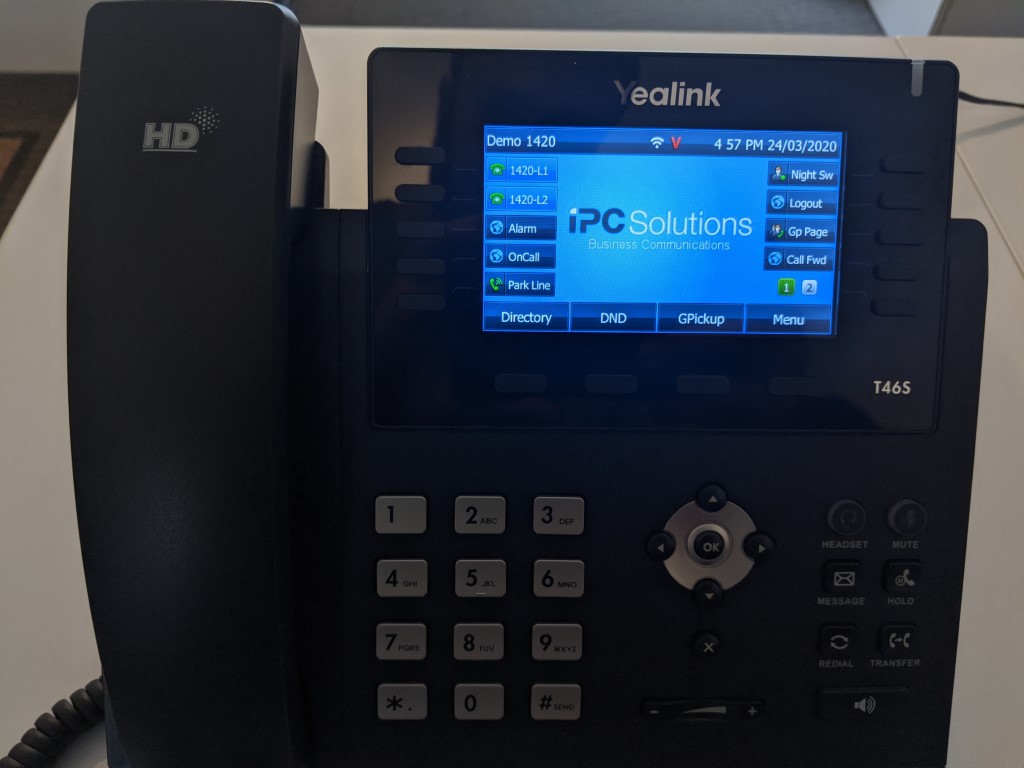
This guide is to assist users in setting up their phone remotely at home. It is assumed that the phone has been configured as a remote phone beforehand.
Assembling the Phone
If the phone was disassembled prior to transporting to your home, please refer to the following on how to reassemble it. You should have the following components:
-
Phone
-
Phone stand
-
Handset
-
Handset cord
-
Wifi dongle (for T4 series phones if wifi is needed)
Plug in the handset like this:
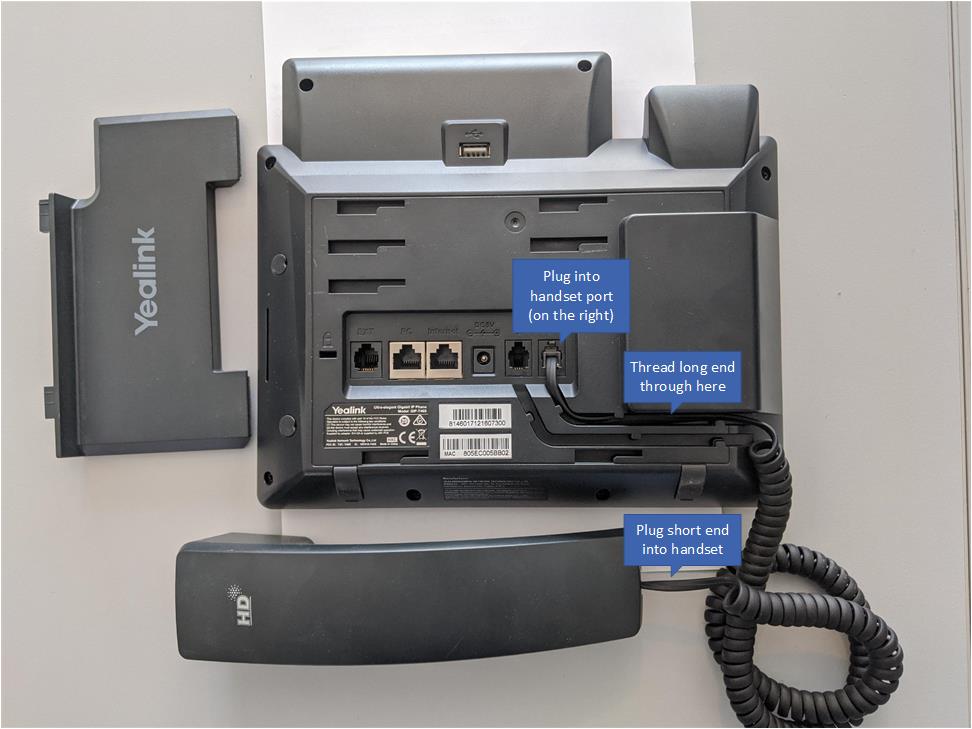
Next put the phone stand in the 4 holes closest to the ports with the "Yealink" label facing toward the top of the phone.
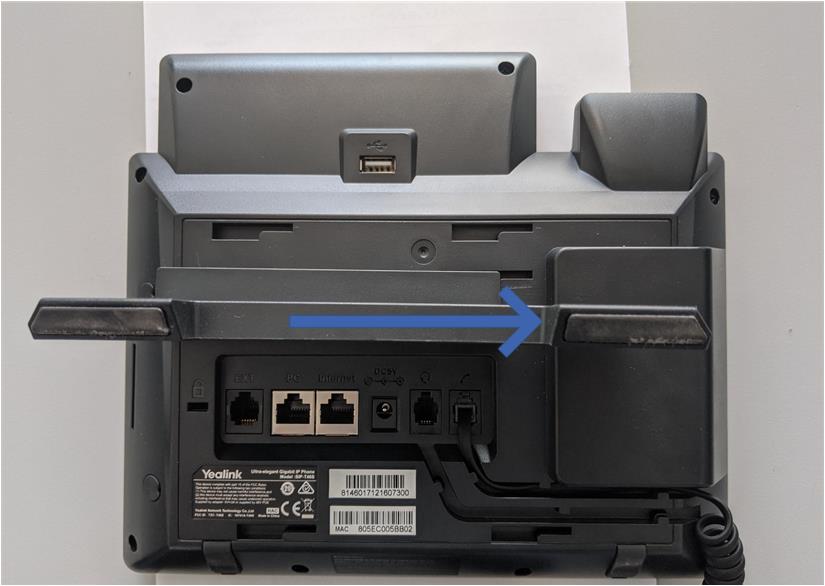
Then slide the phone stand across to lock it into place:
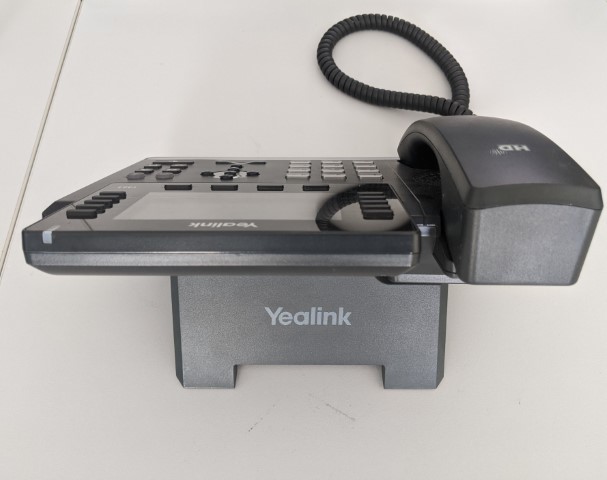
The result should look like this:
Finally connect the power cord to the back of phone:
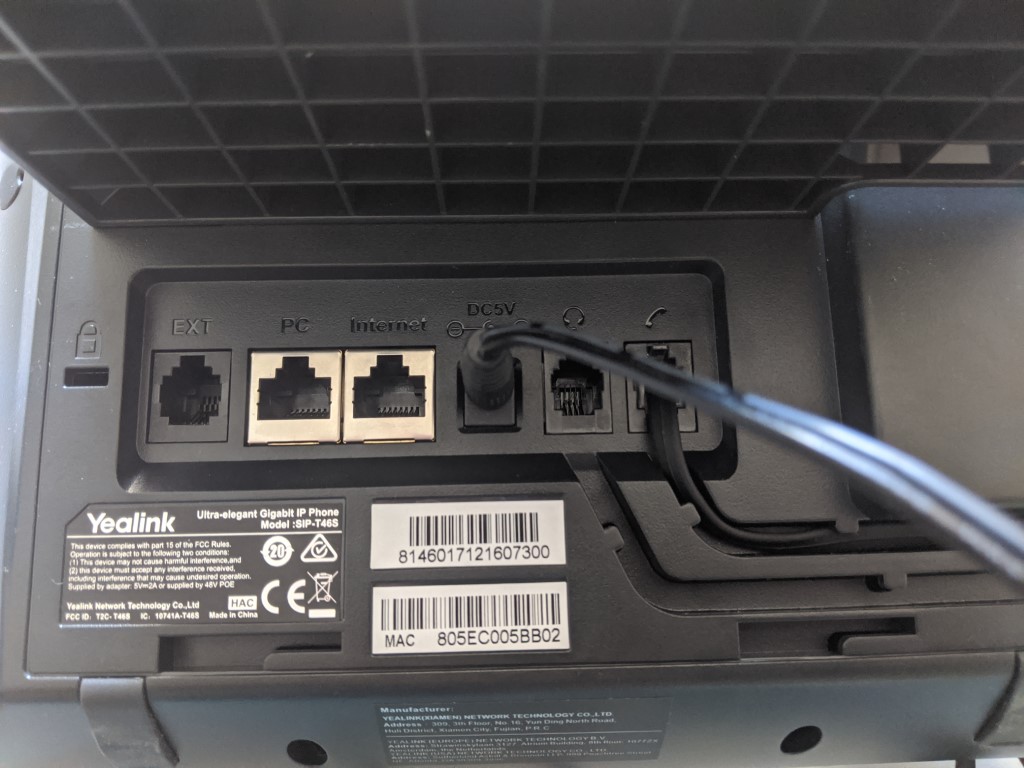
Connecting the Phone to the Network
Via Ethernet cable
Connect an Ethernet cable to the back of the phone and plug it into your internet router or switch.
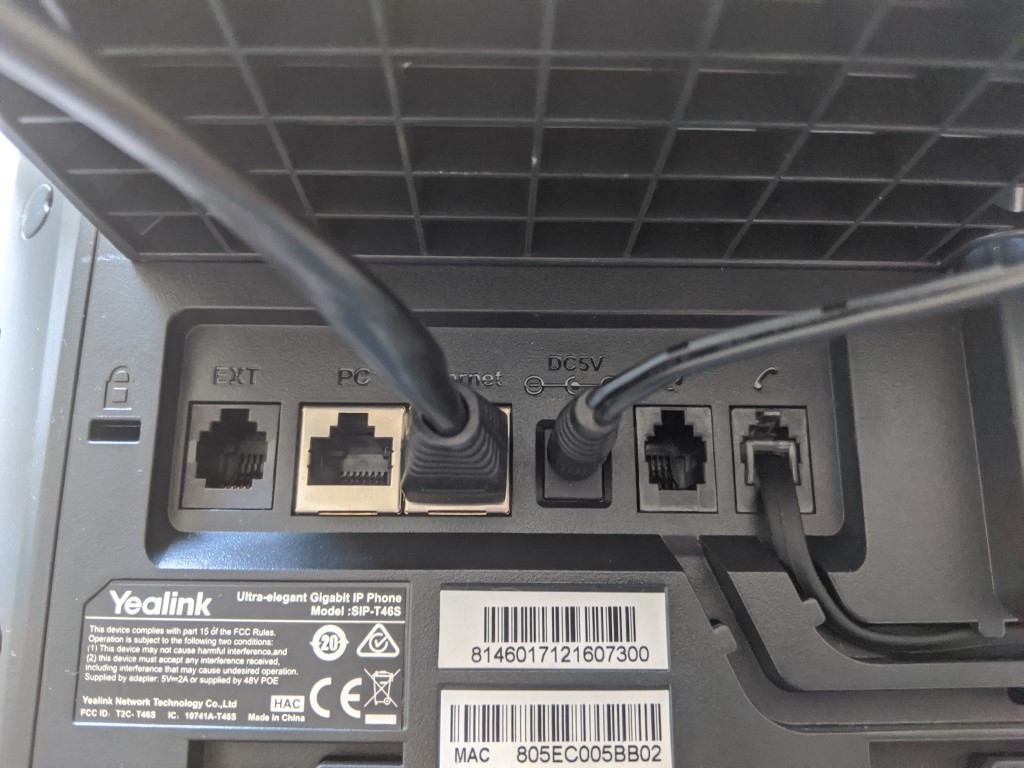
Via Wifi
Plug in the Wifi dongle.
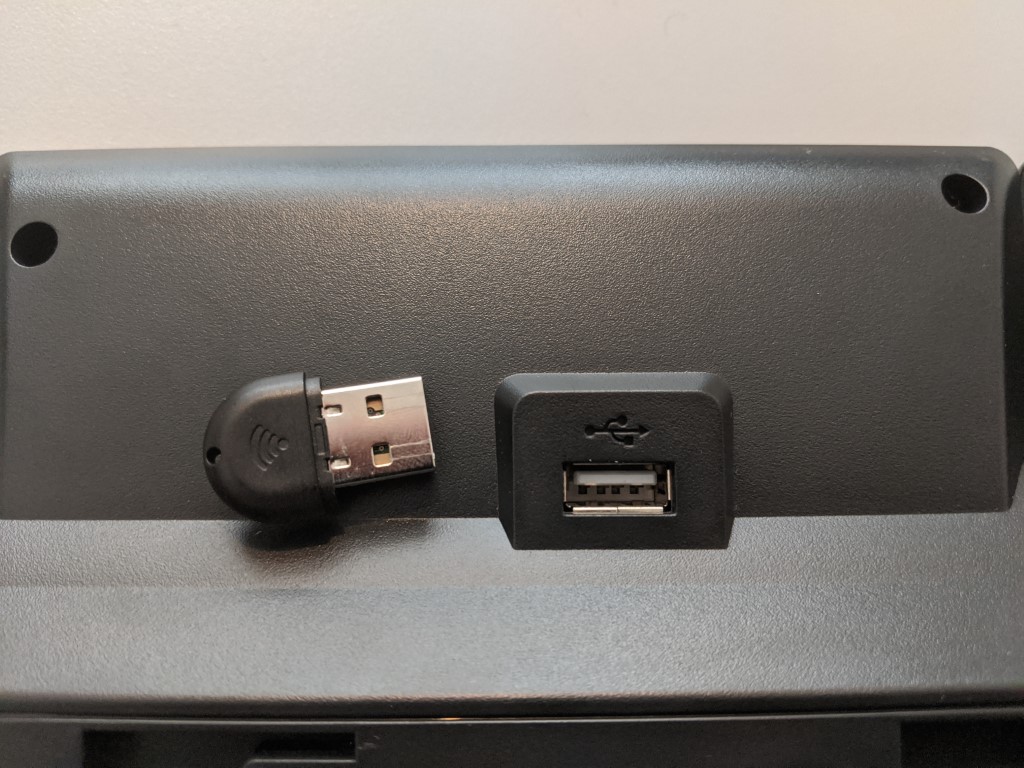
Once the phone boots up it will say "Searching for Wi - Fi Assistant"
Press Cancel
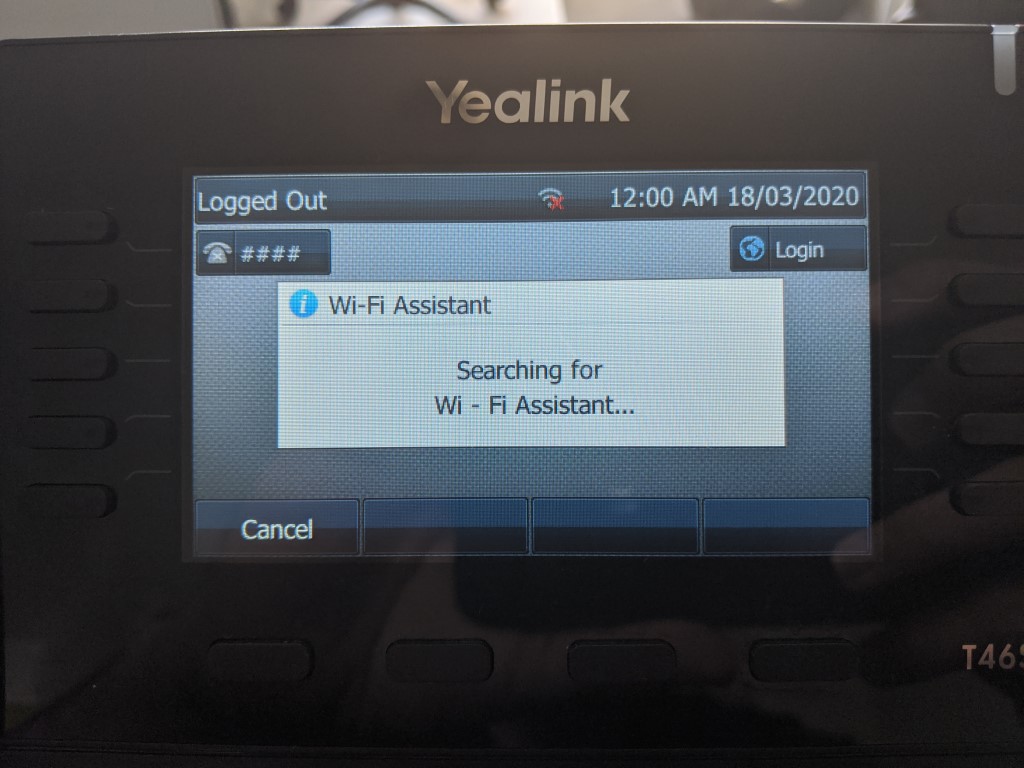
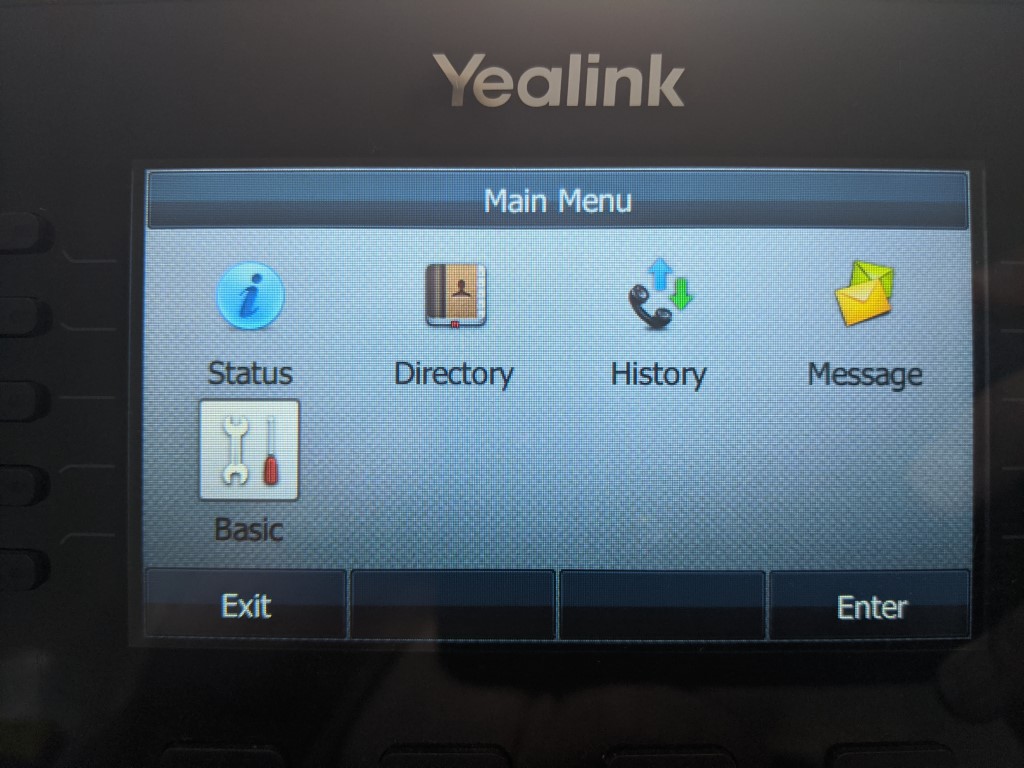
Navigate to: Menu > Basic > Wifi
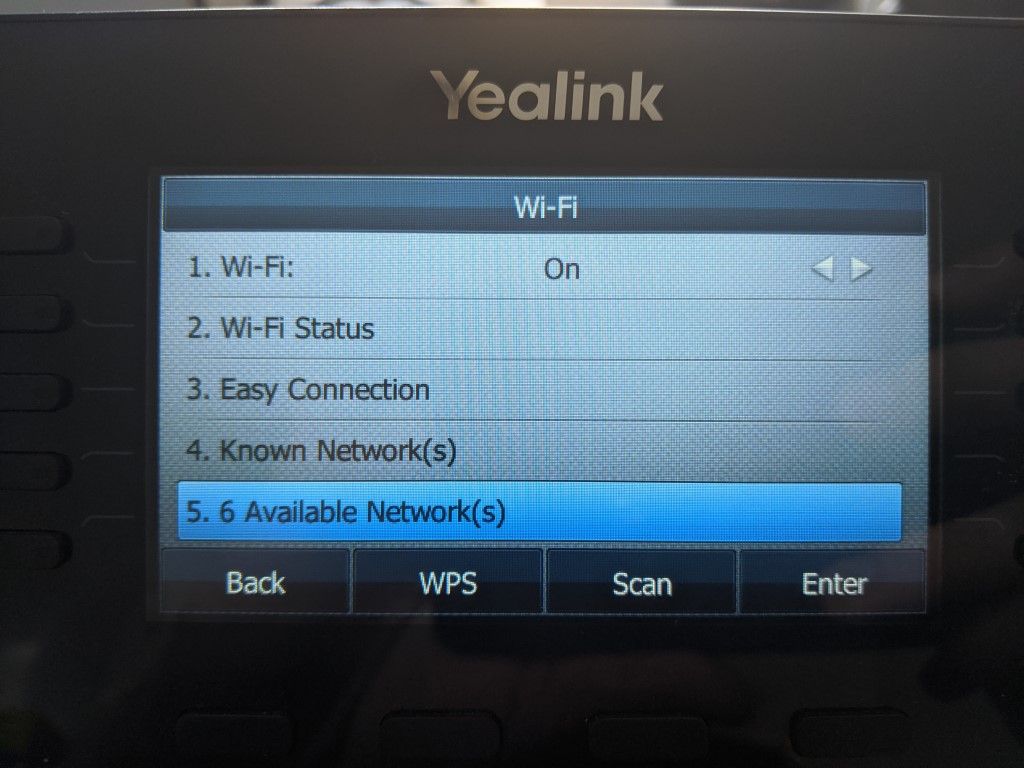
Goto Available Networks and select your Wifi network:
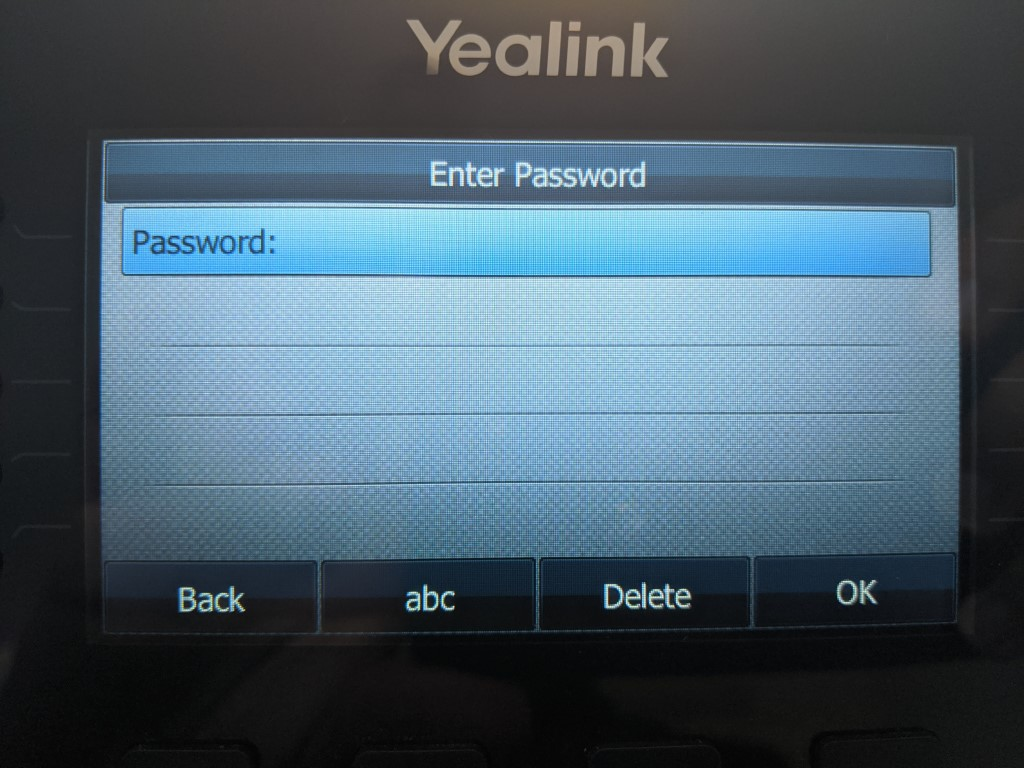
Enter the Wifi password:
Finishing Up
Once the phone has booted and and is connected to internet, it should have a red V at the top of your phone and has connected to your telephone system.